OLED (Optional)
OLED is supported in firmware 0.7.0 and later. Enable it in the configuration portal after installation.
Step 1: Connect the ribbon cable
With power disconnected, insert the ribbon cable into the OLED module’s connector in the orientation shown below.
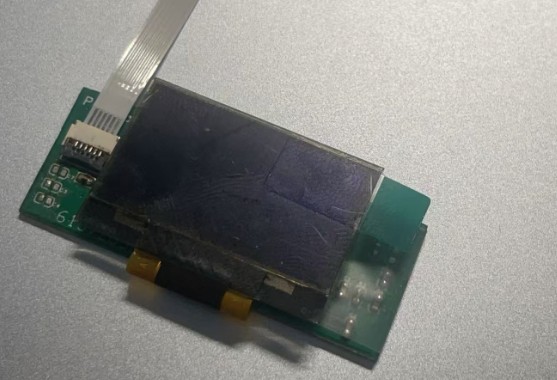
Connect the ribbon cable to the OLED module first.
Step 2: Place it in the touchpad housing
Place the OLED module, with its cable attached, inside the touchpad housing as shown. Leave a clear route for the ribbon cable to exit.
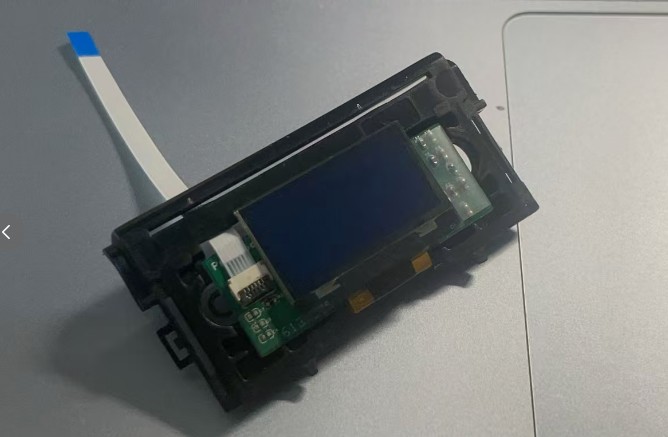
Place the OLED module in the touchpad housing.
Note
The installation may slightly interfere with the touchpad button and cause it to stay pressed. If this happens, lightly sand the touchpad support posts as needed, then check that the button presses and releases normally.
Step 3: Close the cover and connect the mainboard
Fit the touchpad cover without pinching the ribbon cable, then connect the cable’s other end to the mainboard as shown below.
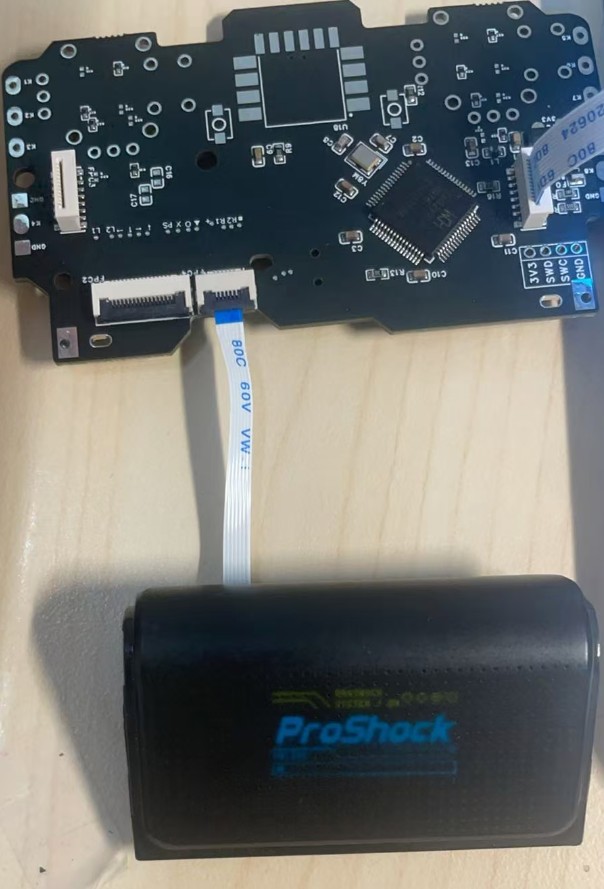
Close the touchpad cover and connect the mainboard. The photo shows the display after enabling OLED.
Warning
Do not press the touchpad too hard: excessive pressure may crack the OLED screen. If the cover or button binds, adjust the installation instead of forcing it closed.
Enabling it in the configuration portal
After installation, with firmware 0.7.0 or later, connect the controller and open the configuration portal:
Enable OLED.
Click Apply, then Save, and wait for saving to finish.
Check that the screen displays normally.