External ADC (Optional)
Important
External ADC support is expected to require firmware 0.8.0 or later. This is a planned version; refer to the official firmware release notes for actual availability.
ADC board close-up
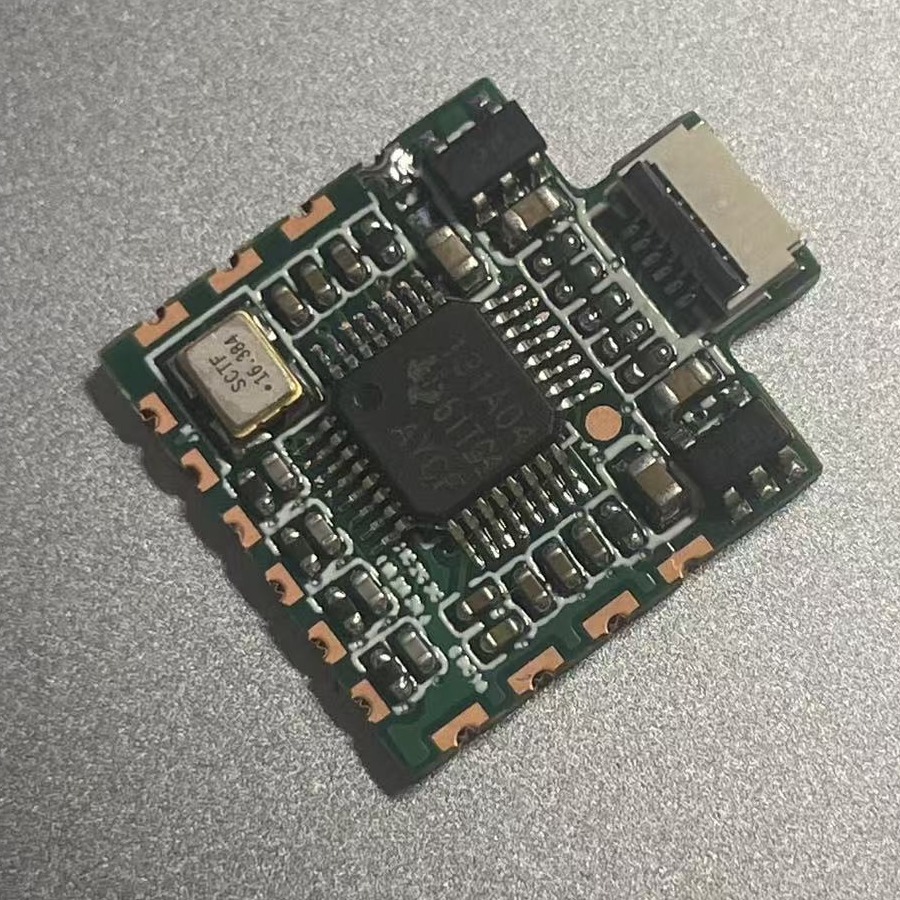
External ADC board close-up.
Installation
With the mainboard disconnected from power, follow these steps:
Solder the ADC board: solder it onto the mainboard in the position and orientation shown below.
Connect the power wire: run a wire from the ADC board’s power connection to the 5V pad on the mainboard. This is the blue wire in the photo.
Insert the 6-pin ribbon cable: insert it into the ADC board’s 6-pin connector, matching the orientation shown in the photo.
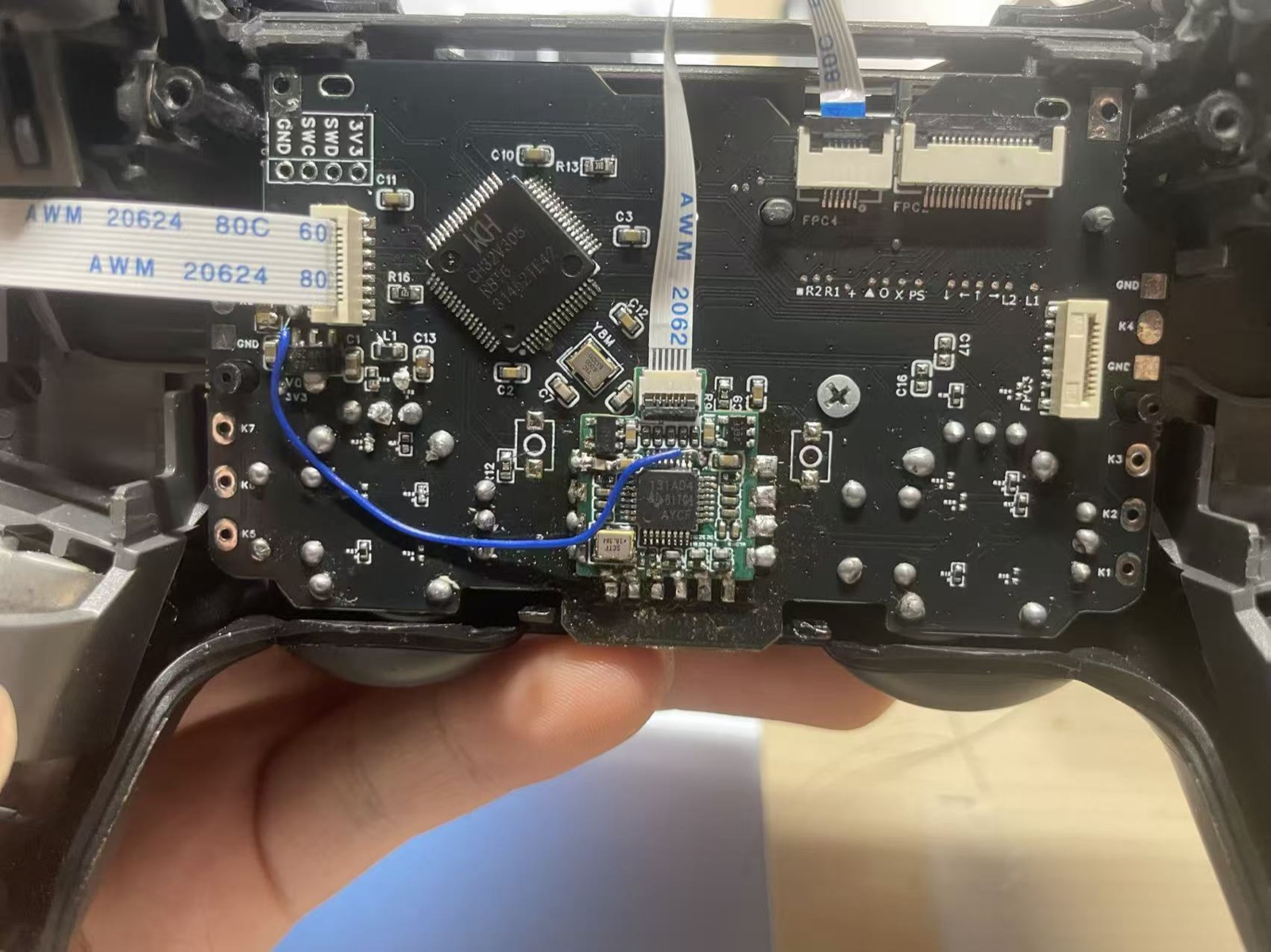
External ADC installation example. The blue wire connects to mainboard 5V; match the ribbon cable orientation to the photo.
After soldering, check that the joints are secure and that no unintended solder bridges connect adjacent pads. Confirm that the power wire connects to 5V before powering on.
Enabling it in the configuration portal
After installation and an update to firmware that supports the external ADC, open the configuration portal and connect the controller:
Go to Configuration → System and find ADC Sampling.
Set ADC Source to External ADC.
Click Apply, then Save, and wait for saving to finish.
Once the external ADC is enabled, you can select 16–20-bit sampling precision under Sampling Depth in ADC Sampling. Apply and save any changes.
If the option is unavailable, check whether your installed official firmware supports the external ADC.